Wizard's Memory--
Welcome to the knowledge base. This space houses a collection of both current and historical configurations, administrative batch fixes, structural guides, and technical formulas.
It’s not all bits and bytes, though; scattered among the tech files, you’ll also find various everyday odds and ends that may be technical or mechanical, and maybe even a favorite recipe or cooking tip.
PowerShell Commands for Terminal Server
Post date: September 25, 2026RDP Term Services Commands:
PowerShell (elevated)
Crash Server if PowerShell can open: Get-Process notmyfault64 -ErrorAction SilentlyContinue | Format-Table Id, StartTime, Responding -AutoSize; Get-CimInstance Win32_SystemDriver -Filter "Name='myfault'" | Format-Table Name, State, Status, PathName -AutoSize
quser = shows Username, SessionName, ID, Active State, Idle Time, and Login Time.
Warning signs (last 24 hours) Get-WinEvent -FilterHashtable @{LogName='System'; Id=10111,10120,7011,7046,7031,7034; StartTime=(Get-Date).AddDays(-1)} -ErrorAction SilentlyContinue | Select-Object TimeCreated, Id, @{n='Detail';e={($_.Message -split "`r?`n")[0]}} | Format-Table -AutoSize -Wrap
Last Reboot Time (Get-CimInstance Win32_OperatingSystem).LastBootUpTime
Key Services Get-Service TermService, UmRdpService, SessionEnv, ThinRDPSrv, BlackFogService -ErrorAction SilentlyContinue | Format-Table Name, Status, StartType -AutoSize
Free Memory Space Get-CimInstance Win32_OperatingSystem | Select-Object @{n='FreeRAM_GB';e={[math]::Round($_.FreePhysicalMemory/1MB,1)}}; Get-PSDrive C | Select-Object @{n='UsedGB';e={[math]::Round($_.Used/1GB)}}, @{n='FreeGB';e={[math]::Round($_.Free/1GB)}}
Recent Updates Get-HotFix | Sort-Object InstalledOn -Descending | Select-Object -First 5 HotFixID, InstalledOn | Format-Table -AutoSize
What each user is using, memory, proc's and cpu time Get-Process -IncludeUserName | Where-Object { $_.UserName -and $_.UserName -notmatch '^(NT AUTHORITY|Window Manager|Font Driver Host)' } | Group-Object UserName | ForEach-Object { [pscustomobject]@{ User = $_.Name; Processes = $_.Count; MemMB = [math]::Round(($_.Group | Measure-Object WorkingSet64 -Sum).Sum/1MB); CPUsec = [math]::Round(($_.Group | Measure-Object CPU -Sum).Sum) } } | Sort-Object MemMB -Descending | Format-Table -AutoSize
What apps each user has open Get-Process -IncludeUserName | Where-Object { $_.UserName -and $_.UserName -notmatch '^NT AUTHORITY' -and $_.Path -like 'C:\Program Files*' } | Group-Object UserName | ForEach-Object { [pscustomobject]@{ User = $_.Name; Apps = (($_.Group.Name | Sort-Object -Unique) -join ', ') } } | Format-Table -AutoSize -Wrap
Today's sign in history Get-WinEvent -FilterHashtable @{LogName='Microsoft-Windows-TerminalServices-LocalSessionManager/Operational'; Id=21,23,24,25; StartTime=(Get-Date).Date} -ErrorAction SilentlyContinue | Sort-Object TimeCreated | Select-Object TimeCreated, @{n='Event';e={switch($_.Id){21{'Logon'}23{'Logoff'}24{'Disconnect'}25{'Reconnect'}}}}, @{n='User';e={$_.Properties[0].Value}}, @{n='Session';e={$_.Properties[1].Value}} | Format-Table -AutoSize
Failed sign ins Get-WinEvent -FilterHashtable @{LogName='Security'; Id=4625; StartTime=(Get-Date).AddDays(-1)} -ErrorAction SilentlyContinue | Select-Object TimeCreated, @{n='User';e={$_.Properties[5].Value}}, @{n='LogonType';e={$_.Properties[10].Value}}, @{n='Source';e={$_.Properties[19].Value}} | Format-Table -AutoSize
Walk Through RF Diagnostic Tool
Post date: July 31, 2026Android AR Scanner:
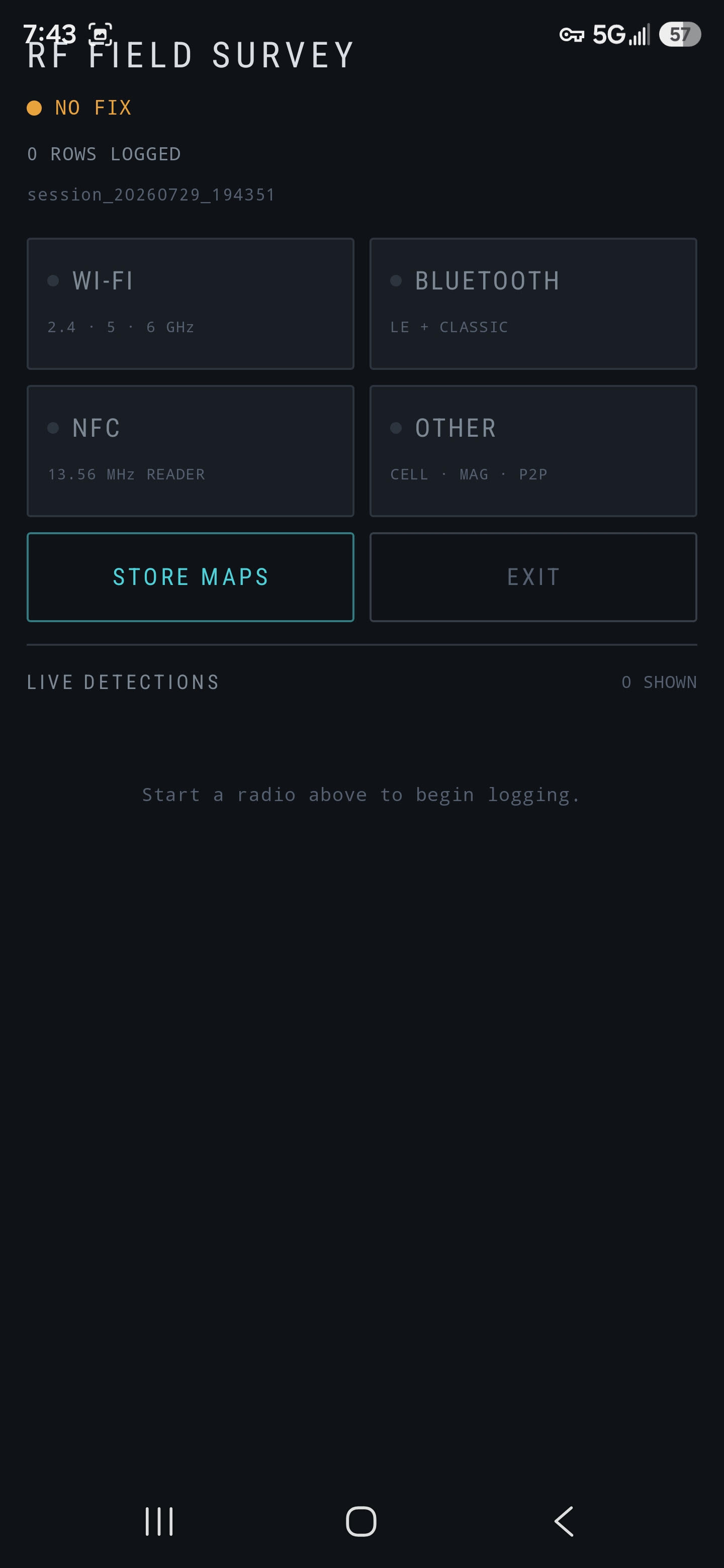
An Android AR tool that turns your phone into a walk-through RF diagnostic. Point the camera at a room and see Wi-Fi access points, Bluetooth devices, and magnetic anomalies as labeled markers floating in physical space, color-coded by signal strength and updating in real time as you move. Built on ARCore for camera-space tracking and Jetpack Compose for the overlay rendering. Scans Wi-Fi (2.4 / 5 / 6 GHz), Bluetooth Low Energy, and the magnetometer simultaneously, binds each reading to the camera pose at the time the radio actually observed it (not when the callback delivered it), and projects emitter positions onto the live camera feed. Designed for the Samsung Galaxy S24/S25 Ultra but runs on any ARCore-supported device at API 31 (Android 12) or newer. GitHub - PCWizardsInc - AR RF Tool
Getting useful results Walk around. The emitter markers start as placeholders - positions around the camera — Once the solver has enough baseline markers, the quality grade improves. While walking around, lift your phone overhead, and down low to the floor in oscilating arcs as you walk. Raise and lower the phone to resolve issues where the axis isn't showing correctly. Short sessions per area. The origin overlay will drift over long surveys, and will silently misaligning everything already accumulated. Walk one room thoroughly, SAVE, RESET, then move to the next.
---Radio Frequency (RF) Field Survey & Scanner App for Android
Post date: July 29, 2026Android Scanner:
A single-screen Android instrument for surveying the radio and sensor environment around a handset, GPS-stamping every detection, and exporting the result to map files. Built and tuned for the Samsung Galaxy S2x Ultra (dual-band L1+L5 GNSS, Bluetooth 5.x with LE Coded PHY, Wi-Fi 6E/7, full NFC controller), but it runs on any device at API 31 (Android 12) or newer. GitHub - PCWizardsInc - RF Scanner
Key Technical Breakdown
1. Target Hardware OptimizationAlthough the app is written to run broadly across the Android ecosystem, it is specifically tuned to leverage the full hardware stack of top-tier modern flagships like the Galaxy S2x Ultra (Snapdragon 8 Elite / Exynos 2500 RF frontends). Devices in this tier possess advanced modem hardware capable of simultaneous multi-band monitoring without throttling or severe hardware abstraction bottlenecks.
2. Monitored Wireless TechnologiesDual-Band L1 + L5 GNSS (Satellite Location):L1 Band (1575.42 MHz): Standard legacy GPS/GNSS frequency band.L5 Band (1176.45 MHz): Advanced signal band offering higher power and lower susceptibility to multipath interference (reflections off buildings).
• Visualizes satellite lock status, carrier-to-noise ratio ($C/N_0$), pseudorange errors, and dual-band multi-constellation (GPS, Galileo, BeiDou, GLONASS) tracking. Bluetooth 5.x with LE Coded PHY:LE Coded PHY: Introduced in Bluetooth 5, Coded PHY uses Forward Error Correction (FEC) to dramatically extend Bluetooth Low Energy range (up to 4x traditional BLE distance).
•Scans long-range BLE beacons, IoT sensors, and local Bluetooth peripherals that standard scanners miss.Wi-Fi 6E / Wi-Fi 7 (802.11ax / 802.11be):Supports tri-band Wi-Fi auditing across 2.4 GHz, 5 GHz, and 6 GHz bands.
•Measures RSSI (signal strength), channel bandwidth (up to 320 MHz in Wi-Fi 7), BSSID details, PHY rates, and channel congestion across the spectrum. Full NFC Controller Integration: •Direct access to the device's NFC adapter for reading ISO/IEC 14443 / 15693 tags, analyzing NDEF records, and observing near-field communication field interactions.
3. System Requirements & PortabilityMinimum Version: API Level 31 (Android 12) or newer.
•While tuned for the S25 Ultra's specific modem capabilities, it uses standard Android framework APIs (GnssStatus.Callback, BluetoothLeScanner, WifiManager, NfcAdapter), meaning any Android 12+ device with modern RF chipsets will run the software—though features like 6 GHz Wi-Fi or LE Coded PHY naturally require underlying hardware support from the host device.
## ⚠️ Legal Disclaimer & Acceptable Use Policy
**By downloading, installing, compiling, or using this software, you explicitly agree to the following terms:**
1. **Intended Use:** This application is provided solely for **educational, diagnostic, and authorized defensive auditing purposes**. It is designed to assist network engineers, IoT integrators, and security professionals in assessing signal leakage, validating RF deployments, and maintaining physical security compliance (e.g., SOC 2, PCI-DSS) on **owned infrastructure**. 2. **Authorized Environments Only:** You may only use this tool to survey networks, environments, and devices that you personally own or have **explicit, written authorization** to assess. 3. **Privacy & Wiretapping Compliance:** Logging raw RF payloads (including MAC addresses, SSIDs, and Vendor IEs) can implicate local, federal, and international privacy and wiretapping laws. You are entirely responsible for ensuring your use of this software complies with all applicable laws in your jurisdiction. 4. **No Liability:** The authors and contributors of this repository disclaim any and all liability for misuse, unauthorized tracking, data breaches, or legal repercussions resulting from the use of this software. The tool is provided "AS-IS" without warranties of any kind. **Any action you take based on the data captured by this tool is strictly at your own risk.**
*If you do not agree to these terms, do not build or use this software.*
---
## 📡 Primary Use Cases
* **Site Surveys & Signal Leakage Auditing:** Map Wi-Fi and Bluetooth propagation across corporate campuses to ensure sensitive signals do not bleed into public spaces. * **Shadow IT & Rogue Device Detection:** Uncover unapproved devices (such as travel routers or smart home gear) operating on corporate premises by inspecting raw Vendor IE 221 payloads and Wi-Fi Direct beacons. * **IoT & Hardware Validation:** Troubleshoot complex Bluetooth (LE Coded PHY) and Wi-Fi (6E/7) deployments in industrial or warehouse environments. * **Facility Engineering Sweeps:** Utilize fused magnetometer anomaly logging to locate active electrical conduits and magnetic lock mechanisms during authorized facility diagnostics. ---
## 🛠 Features & Capabilities
* **Unfiltered Telemetry:** Bypasses consumer-level UI abstractions to provide raw bytes, including Vendor-specific Information Elements and BLE Extended Advertisements. * **Spatial Mapping Export:** Automatically generates `survey.kml` and `survey.geojson` files, mapping the strongest observed signal strengths against high-precision L1+L5 GNSS coordinates. * **Meter-Scale Ranging:** Supports 802.11mc (Fine-Timing Measurement) against compatible access points for precise physical distance approximation. * **Non-Destructive Logging:** All data is appended to local, app-scoped `.jsonl` and `.csv` files. Each detection carries the full raw payload (beacon IEs, BLE adv bytes, NDEF records) ensuring historical data can be re-parsed in the future. ---
Fedora 43 & 44 WS - No Sound on Intel iMac
Post date: May 28, 2026Apple iMac - Sound Issue after installing Fedora Linux - Gnome Desktop
When you install Fedora WS, and you click your sound icon... and the slider makes no sound... this is what to do...
Drivers and command to use
Tested on Fedora 43 & 44 WS on iMac 18,3
# Commands to run to get sound working:
sudo dnf install patch gcc make kernel-devel git
cd ~/snd_hda_macbookpro
sudo ./install.cirrus.driver.sh
reboot
Mac Sound Drivers: Zipped Drivers
Download these Drivers, and expand the zip file.
PC Wizards Inc - Law Enforcement & Government Cyber Threat Feed
Post date: June 21, 2026 2:28:28 PMSource Type: Public Sector Cyber Threat Intelligence (CTI)
This blocklist is aggregated directly from official law enforcement and government cybersecurity bulletins. It contains active indicators of compromise (IOCs) observed in real-world campaigns targeting public sector networks.
What's Included: Active domains participating in ransomware, phishing, browser hijacking, malicious redirects, and advanced adware campaigns.
How to use this in Pi-hole / AdGuard Home:
Copy the raw URL link below and add it to your network's Adlist / Blocklist management console:
https://raw.githubusercontent.com/pcwizardsinc/Firewall/refs/heads/main/MergedList.txt
About DNS Sinkholes:
Both Pi-hole and AdGuard Home act as network-wide DNS sinkholes. By setting one up on your local network, you can block tracking, ads, and malicious cyber threats across every device in your home—including smart TVs and IoT devices—without installing any client-side software.
Links of Note:
Fedora 44 Post Install Guide
Post date: May 28, 2026Things to do after installing Fedora 44 - RPM Fusion & Terra
Fedora has disabled the repositories for a lot of free and non-free .rpm packages by default. Follow this if you want to use non-free software like Steam, Discord and some multimedia codecs etc. As a general rule of thumb it is advised to do this to get access to many mainstream useful programs.
Guide:
Fedora 44 Post Install Guide


Source - Credit to: devangshekhawat

Source:https://github.com/devangshekhawat/Fedora-44-Post-Install-Guide?fbclid=IwY2xjawSF2ohleHRuA2FlbQIxMABicmlkETFIUUhuTGpnRFFCdjNZMzVxc3J0YwZhcHBfaWQQMjIyMDM5MTc4ODIwMDg5MgABHu_w30Hmh7uaRaOPgkBGOl6z1Bi3Sd_g2AT-KnktYHNs7F8qGmqPCW4RcubX_aem_Az513H3NcBx6h9GLFHr0vQ


Script Credit: https://www.facebook.com/groups/11454680248/user/1076760802/

Scripted: https://pastebin.com/8zXTCAXB?fbclid=IwY2xjawSF2opleHRuA2FlbQIxMABicmlkETFIUUhuTGpnRFFCdjNZMzVxc3J0YwZhcHBfaWQQMjIyMDM5MTc4ODIwMDg5MgABHgrWK_i-_vNcF8XmE22Z5wZGLOlM1WL_XKvxkn1rBblwUUgMrFx17R94eshd_aem_QonNSDj34yg--huOD4uHEQ


Fedora has disabled the repositories for a lot of free and non-free .rpm packages by default. Follow this if you want to use non-free software like Steam, Discord and some multimedia codecs etc. As a general rule of thumb it is advised to do this to get access to many mainstream useful programs.
Enable third party repositories by pasting the following into the terminal:


This script is an interactive post-installation setup utility for Fedora 44. Its purpose is to automate the tedious tasks a user usually performs right after installing a fresh copy of Fedora, such as updating the system, adding software repositories, installing proprietary drivers, and setting up media codecs.
It is highly interactive, well-structured, and includes safety guards to prevent you from accidentally breaking your system.

Here is a detailed breakdown of exactly what this script does, step-by-step:


🛡️ Phase 1: Safety & Environment Checks

Fedora Version Check: It checks the /etc/fedora-release file. If the system is not Fedora 44, the script safely exits to prevent compatibility issues.
Disclaimer: It displays a warning that the script is a personal project provided "as-is" and requires you to type y to accept the risk before continuing.
Smart Sudo Keep-Alive: It asks for your administrator (sudo) password upfront. Once granted, it starts a background process that refreshes your sudo privilege every 50 seconds. This ensures the script won't pause halfway through a long installation to ask for your password again.


🔄 Phase 2: System Update

It prompts you to perform a full system upgrade (dnf update).
If you choose to update, it offers to reboot the computer immediately before moving forward, which is best practice after upgrading core system packages or the Linux kernel.


📋 Phase 3: Interactive Configuration Menu

The script doesn't just force software onto your machine; it asks you Yes/No questions to build a personalized installation profile. It gathers your preferences for:
Enabling official Fedora third-party repositories.

Adding the RPM Fusion repositories (essential for non-free software).

Enabling Flathub (the primary app store for Flatpak applications).

Installing AppImage support.

Installing NVIDIA Drivers (it automatically scans your hardware first to see if you actually have an NVIDIA graphics card).

Installing Multimedia codecs and replacing the restricted "free" FFmpeg with the full version.

Installing common Archive tools (unzip, 7zip, unrar).

Before making any changes, it prints a clean Installation Summary of your choices and asks for a final confirmation to proceed.


📦 Phase 4: Execution & Installations

Based on your answers in the menu, it executes the following operations:


1. Third-Party Repositories

Installs the fedora-workstation-repositories package and explicitly enables Google Chrome, Steam, PyCharm, and Cisco OpenH264 repositories.

2. RPM Fusion

Downloads and installs the RPM Fusion Free and Non-Free repositories, which host software that Fedora cannot ship out-of-the-box due to licensing restrictions.

3. Flathub Setup

Adds the Flathub remote to Flatpak both system-wide (for all users) and user-wide (isolated to your account).


4. NVIDIA Drivers & Secure Boot Handling (Crucial Feature)

If you opted to install NVIDIA drivers, the script handles a notoriously tricky Linux task:

Without Secure Boot: It simply installs akmod-nvidia.

With Secure Boot: It detects if Secure Boot is active via mokutil. If active, it installs signing tools, generates a custom Machine Owner Key (MOK), imports it into your system, and instructs you exactly how to enroll the key on your next reboot so the NVIDIA driver is allowed to load.
It also asks if you want to install CUDA support for heavy computing tasks like Blender or DaVinci Resolve.


5. Multimedia Codecs

Swaps out Fedora's default ffmpeg-free package for the unrestricted ffmpeg package from RPM Fusion. It then upgrades your system's multimedia group and installs alternative audio/video frameworks (sound-and-video and GStreamer plugins).

6. Archive Support

Installs command-line utilities to extract and handle compressed file formats (.zip, .7z, .rar).


🏪 Phase 5: Desktop Integration & Wrap-Up

Launch App Store: It checks whether you are running GNOME or KDE Plasma, identifies your desktop's native app store (GNOME Software or KDE Discover), and asks if you'd like to open it to browse for apps visually.
Clean Exit: It terminates the background sudo keep-alive process, reminds you to reboot to apply all the changes, and offers to trigger that reboot automatically.


                     Fedora Customization
                      Follow the instructions
Want a very well designed FastFetch?
Post date: May 28, 2026FastFetch
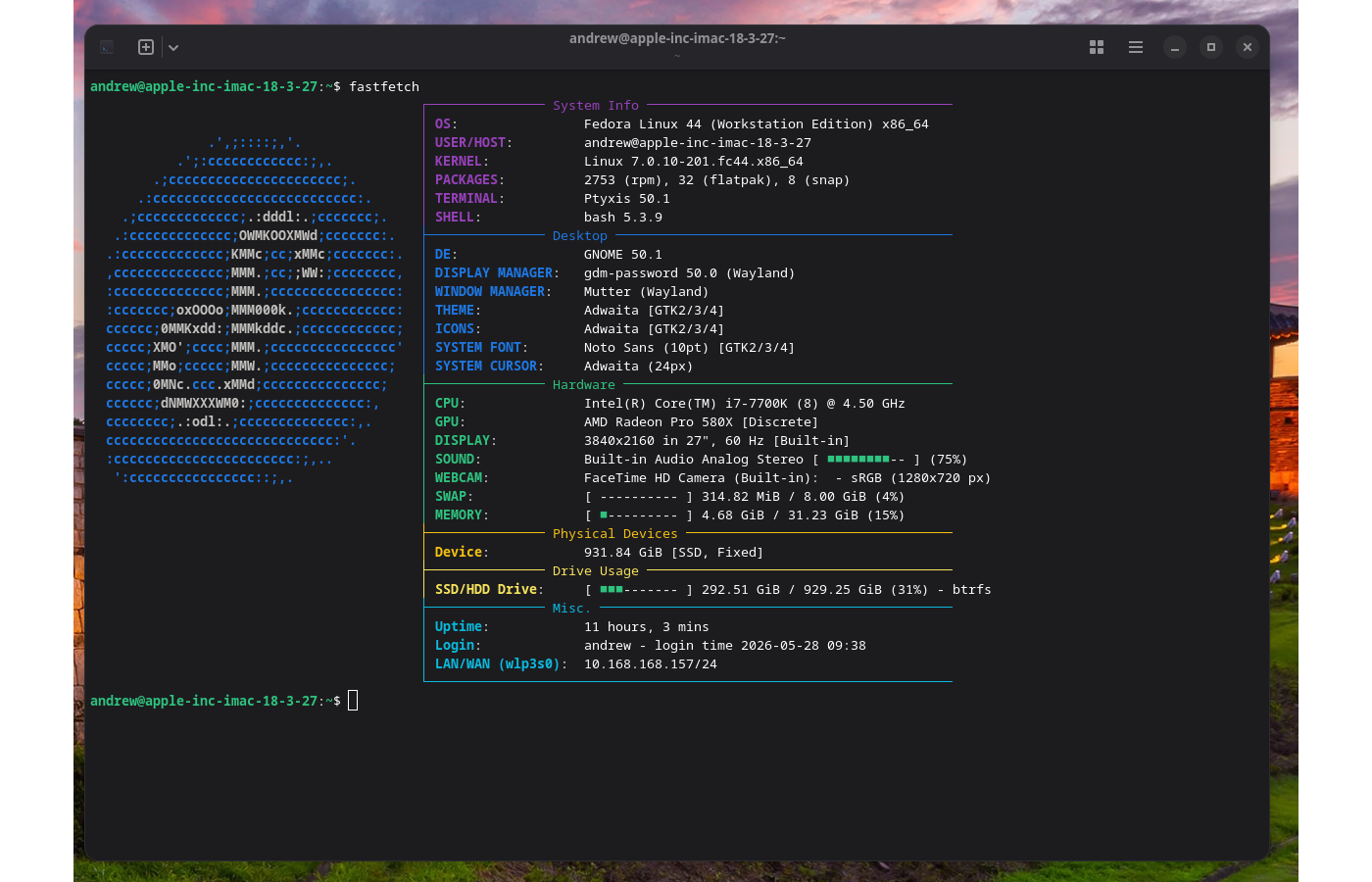
This layout relies on box-drawing characters (┌, ├, │, └) paired with individual section color keys. Here is exactly how to set it up on your system!
Step 1: Open or Create your Configuration File
Open your terminal and create (or overwrite) your local Fastfetch configuration file using a text editor like nano:
Bash
nano ~/.config/fastfetch/config.jsonc
Step 2: Paste the Layout Configuration
Copy the entire block below and paste it into the file. This script sets up the specific categories (System Info, Desktop, Hardware, Physical Devices, Drive Usage, and Misc.) along with the exact progress bars and ANSI matching color codes:
{
  "$schema": "https://github.com/fastfetch-cli/fastfetch/raw/dev/doc/json_schema.json",
  "logo": {
    "padding": {
      "top": 2,
      "left": 2,
      "right": 2
    }
  },
  "display": {
    "separator": ": ",
    "key": {
      "width": 22
    },
    "percent": {
      "type": 3
    }
  },
  "modules": [
    // === SYSTEM INFO ===
    {
      "type": "custom",
      "format": "{#35}┌─────────────── System Info ───────────────────────────────────────"
    },
    {
      "type": "os",
      "key": "│ OS",
      "keyColor": "35"
    },
    {
      "type": "title",
      "key": "│ USER/HOST",
      "keyColor": "35",
      "format": "{user-name}@{host-name}"
    },
    {
      "type": "kernel",
      "key": "│ KERNEL",
      "keyColor": "35"
    },
    {
      "type": "packages",
      "key": "│ PACKAGES",
      "keyColor": "35"
    },
    {
      "type": "terminal",
      "key": "│ TERMINAL",
      "keyColor": "35"
    },
    {
      "type": "shell",
      "key": "│ SHELL",
      "keyColor": "35"
    },

    // === DESKTOP ===
    {
      "type": "custom",
      "format": "{#34}├─────────────── Desktop ───────────────────────────────────────────"
    },
    {
      "type": "de",
      "key": "│ DE",
      "keyColor": "34"
    },
    {
      "type": "lm",
      "key": "│ DISPLAY MANAGER",
      "keyColor": "34"
    },
    {
      "type": "wm",
      "key": "│ WINDOW MANAGER",
      "keyColor": "34"
    },
    {
      "type": "theme",
      "key": "│ THEME",
      "keyColor": "34"
    },
    {
      "type": "icons",
      "key": "│ ICONS",
      "keyColor": "34"
    },
    {
      "type": "font",
      "key": "│ SYSTEM FONT",
      "keyColor": "34"
    },
    {
      "type": "cursor",
      "key": "│ SYSTEM CURSOR",
      "keyColor": "34"
    },

    // === HARDWARE ===
    {
      "type": "custom",
      "format": "{#32}├─────────────── Hardware ──────────────────────────────────────────"
    },
    {
      "type": "cpu",
      "key": "│ CPU",
      "keyColor": "32"
    },
    {
      "type": "gpu",
      "key": "│ GPU",
      "keyColor": "32"
    },
    {
      "type": "display",
      "key": "│ DISPLAY",
      "keyColor": "32"
    },
    {
      "type": "sound",
      "key": "│ SOUND",
      "keyColor": "32"
    },
    {
      "type": "camera",
      "key": "│ WEBCAM",
      "keyColor": "32"
    },
    {
      "type": "swap",
      "key": "│ SWAP",
      "keyColor": "32"
    },
    {
      "type": "memory",
      "key": "│ MEMORY",
      "keyColor": "32"
    },

    // === PHYSICAL DEVICES ===
    {
      "type": "custom",
      "format": "{#33}├─────────────── Physical Devices ──────────────────────────────────"
    },
    {
      "type": "physicaldisk",
      "key": "│ Device",
      "keyColor": "33"
    },

    // === DRIVE USAGE ===
    {
      "type": "custom",
      "format": "{#93}├─────────────── Drive Usage ───────────────────────────────────────"
    },
    {
      "type": "disk",
      "key": "│ SSD/HDD Drive",
      "keyColor": "93"
    },

    // === MISC ===
    {
      "type": "custom",
      "format": "{#36}├─────────────── Misc. ─────────────────────────────────────────────"
    },
    {
      "type": "uptime",
      "key": "│ Uptime",
      "keyColor": "36"
    },
    {
      "type": "command",
      "key": "│ Login",
      "keyColor": "36",
      "text": "echo \"$USER - login time $(who | awk '{print $3, $4}' | head -n1)\""
    },
    {
      "type": "localip",
      "key": "│ LAN/WAN (wlp3s0)",
      "keyColor": "36",
      "showIpv4": true,
      "showIpv6": false,
      "name": "wlp3s0"
    },
    {
      "type": "custom",
      "format": "{#36}└───────────────────────────────────────────────────────────────────"
    }
  ]
}
2008 R2 Service Pack 1 gives you "0x80246007" error code
Post date: May 10, 2012 3:32:29 PMOn my 2008 Server, I run Hyper-V, and for whatever reason, this error code reared its ugly head while trying to update it.
To Resolve this error code, do the following:
Open Notepad and type in the following:
net stop wuauserv
                    cd %systemroot%\SoftwareDistribution
                    ren Download Download.old
                    net start wuauserv
                    net stop bits
                    net start bits
* Save the file as Repair.bat and place on the Desktop of your 2008 R2 Server.
Run the batch file. After running the batch file, you will have to run the Service Pack again. It should go through this time! (Good Luck!)
A Fix to Profile Issues
Post date: Sep 26, 2016 2:28:28 PMOpen Regedit and navigate to the following path to clear or adjust corrupted profiles:
HKEY_LOCAL_MACHINE\SOFTWARE\Microsoft\Windows NT\CurrentVersion\ProfileList
A Perfect Turkey starts with 24 hours of a brine
Post date: Nov 30, 2015 3:17:58 PMIngredients:
Coarse Kosher Salt, Brown Sugar, Dried Cranberries, Allspice, Dried Apple Slices, Crushed Dried Garlic, Orange Peels, Whole Black Pepper, Rosemary, Green Peppercorns, Thyme, Bay Leaf, Sage, and a Vanilla Bean.
Amazon AWS Free
Post date: May 10, 2012 3:22:59 PMAmazon is offering essentially a free linux virtual server online with a new AWS sign up. The server has some limited specs for the free service, but really cool tech regardless.
Check out the official program documentation page here: http://aws.amazon.com/free/
AMD Laptop with Radeon Graphics - Integrated Card in use
Post date: Oct 24, 2017 7:29:38 PMHow to Configure Laptop Switchable Graphics
What is Switchable Graphics Technology?
Switchable Graphics is a laptop technology that utilizes both the graphical processing capabilities of a discrete graphics adapter and the power efficiency of an integrated graphics adapter. Switchable Graphics technology engages discrete graphics only when it is needed for 3D applications, and uses energy-efficient integrated graphics capabilities the rest of the time.
How to Enable Switchable Graphics?
To ensure full compatibility it is recommended to use the latest graphics driver for the integrated and high performance AMD graphics processor (GPU) provided by the laptop manufacturer. Switchable Graphics will not function if the power saving GPU does not have any display drivers installed. If you would like to use the most recent driver offered by the graphics manufacturer to support the latest games and applications, follow the steps below in exact order:
- Install the latest Intel graphics driver from the Intel or laptop manufacturer's website.
- Install the latest AMD graphics driver from the AMD or laptop manufacturer's website.
Note! Before installing the display drivers, check windows device manager to see if the GPUs are listed under Display Adapters. The high performance GPU may appear under other devices as a generic video controller.
Configuring Switchable Graphics:
Choose whether to run applications on the high performance or power saving graphics processor, or to assign the GPU based on the current power source.
- Right-click the Desktop and select AMD Radeon Settings from the menu.
- Select Preferences.
- Select Radeon Additional Settings.
- Navigate to Power and select Switchable Graphics Application Settings to see a list of recent applications and which GPU they are using.
- Select Switchable Graphics Global Settings to adjust your GPU settings for longer battery life or higher performance.
Note! The high performance GPU may not be available when the laptop is running on battery power.
Assigning Applications to GPUs:
Assigning applications allows the user to specify which graphics processor is best suited for 3D applications. Selecting high performance will engage the discrete GPU and allow the system to increase graphical processing capabilities.
Note! The operating system may restrict certain applications from using the discrete GPU. For example, Internet browsers and video applications.
To add an application to use the high performance GPU:
Navigate to Radeon Settings > Preferences > Additional Settings > Power > Switchable Graphics Application Settings and click Add Application. Select the application you want to add and click Open. Under Graphic Settings choose High Performance and click apply.
Switchable Graphics Application Monitor:
The Switchable Graphics Application Monitor allows the user to check which GPU is assigned for each application used on the system. Navigate to Radeon Settings > Preferences > Additional Settings > Power > Switchable Graphics Application Monitor and click Start Monitoring.
An application executed whilst monitoring is enabled will appear in the list below and will show which applications are running on the high performance AMD GPU.
Source: https://community.amd.com/docs/DOC-1581
Annoyed by the default font and size in Google docs? Change it!
Post date: Jun 20, 2014 4:55:23 PMChange the default Font and Size of your Google Docs:
- Highlight a select portion of your document text.
- In the menu bar, click on the drop-down next to Arial and choose your new font, Georgia for instance, Size 12.
- In the menu bar, click on the drop-down next to Normal text and click the arrow next to Normal Text >.
- Click "Update ‘Normal text’ to match".
- With the text still highlighted, click on the drop-down next to Normal text, click the arrow next to Normal Text > and then select "Apply ‘Normal text’".
To save it as the default going forward:
- Click Format, Paragraph styles and then the "Options >" at the bottom of the list.
- Click "save as my default styles".
Annoyed by programs that won't uninstall? Try this!
Post date: Jun 20, 2020 4:55:23 PMUninstall troublesome programs:
AOL blocking your e-newsletters?
Post date: Dec 01, 2016 6:21:16 PMRequest a routing and sender evaluation review directly via the automated postmaster interface link:
Astaro / Sophos UTM - Enabling IPS - Cuts Bandwidth in Half
Post date: Nov 07, 2016 3:4:48 PM -- Updated: May 28, 2026Astaro Security Gateway (ASG) Linux / acquired by Sophos (UTM9) - Enabling IPS - Cuts Available Bandwidth in Half.
Reason? It's not system aware! It doesn't have logic in the installation routing to understand how many cores are available to it.
You need to manually look at how many cores you are running, then increase the number of "IPS instances" to reflect that number of cores, otherwise your firewall will not only bog down, but it won't show you why!
You will need to enable shell access. SSH in using loginuser. Then sudo su to root.
Once root, execute the following commands:
cat /proc/cpuinfo
cc get ips num_instances
cc set ips num_instances x
/var/mdw/scripts/snort restart
(Replace "x" with the actual number of CPU cores installed in your UTM environment to distribute processing loads properly.)
Note: I just retired this firewall tonight. It ran for nearly 2 decades on a PE 2950. It was an amazing firewall. RIP ASG UTM9Sophos Sunset it June 2026
AT&T APN Settings
Post date: Jan 03, 2018 10:51:8 PMAT&T APN Profiles
- Name: ATT LTE
- APN: pta
- PROXY: Not set
- PORT: Not set
- Username: Not set
- Password: Not set
- Server: Not set
- MMSC: http://mmsc.mobile.att.net
- MMS Proxy: proxy.mobile.att.net
- MMS Port: 80
- MCC: 310
- MNC: 410
- Authentication type: none
- APN type: default,admin,fota,mms,supl,hipri
(make sure NO spaces after commas) - APN protocol: IPv4/IPv6
- APN roaming protocol: IPv4/IPv6
- BEARER: SPRS,HSUPA,IS95B,HSPA,HSDPA,LTE,EDGE,eHRPD,EVDO_A,1xRTT,HSPAP,EVDO_B,EVDO_0IS95A,UMTS
- MVNO type: None
CLICK MENU (...) soft button and SAVE settings.
Glossary & Technical References:
- GSM – Global System for Mobile Communications
- CDMA – Code Division Multiple Access
- EDGE – Enhanced Data GSM Environment
- HSPA – High Speed Packet Access
- HSUPA – High Speed Uplink Packet Access
- HSDPA – High Speed Downlink Packet Access
- EHRPD – Evolved High Rate Packet Data
- 1xRTT – CDMA Data Mode
- EVDO – Evolution Data Optimized
- UMTS – Universal Mobile Telecommunications System
- HSPA+ – Evolved HSPA
- LTE – Long Term Evolution
- 2G Network Protocols – GPRS, EDGE, CDMA, IDEN
- 3G Network Protocols – HSPA, HSUPA, HSDPA, EHRPD, 1XRTT, EVDO, UMTS, HSPA+
- 4G Network Protocols – LTE
Authors and Books - Favorite Audio Books
Post date: Feb 03, 2018 6:15:12 PMThis is a range of styles and types of books, from ones geared for teens, to very adult (All are of a supernatural bent and are not in any particular order):
- Matt Dinnimin - Dungeon Crawler Carl
- Shirtaloon & Travis Deverell - He who fights with monsters
- Patricia Briggs - Mercedes Thompson
- Chloe Neill - Chicagoland Vampires
- Chloe Neill - Heirs of Chicagoland, Series
- Dannika Dark - Mageri
- Kalayna Price - Alex Craft
- Carrie Vaughn - Kitty Norville
- Allyson James - Stormwalker
- Ilona Andrews - Kate Daniels
- Laurell K Hamilton - Anita Blake
- Rachel Caine - The Morganville Vampires
- Lynsay Sands - Argeneau
- Jeaniene Frost - Night Huntress
- Christopher Farnsworth - Nathaniel Cade
- Jim Butcher - Dresden Files
- Eoin Colfer - Artemis Fowl
- JD Tyler - Alpha Pack
- Tamora Pierce - Song of the Lioness
- Jonathan Stroud - Bartimaeus
- JK Rowling - Harry Potter
- Orson Scott Card - Ender's Game
- Stephanie Meyer - Twilight
- Robin Hobb - Farseer Trilogy
- Terry Goodkind - Sword of Truth
- Ally Carter - Gallagher Girls
- Cassandra Clare - Draco Trilogy
- Neal Stephenson - Snow Crash
- Brom - Krampus: The Yule Lord
- Helen Harper - Slouch Witch
- Zogarth - Primal Hunter
- J.M. Clarke - Mark of the Fool Series: A Progression Fantasy Epic
- Pirateaba - Wandering Inn Series
- CasualFarmer - Beware of Chicken series
- Rhaegar - Azarinth Healer series
- House Wolf - The Grand Game Series
- Tom Elliot - A Dark Fantasy LitRPG Adventure (The Grand Game, Series)
- Danielle L. Jensen - The Bridge Kingdom
- Sean Oswald - Induction: Welcome to the Multiverse
- Travis Baldree - Legends & Lattes
- Marc Alan Edelheit - Stiger's Tigers
- David A. Wells - Thinblade
- Ryan Evans - Dark Wolf's Awakening
- Jamie Davis, C. J. Davis - Accidental Traveler
- Adastra339 - Savage Awakening
- Ernest Cline - Ready Player One
- Marissa Meyer - The Lunar Chronicles
- Garth Nix - The Old Kingdom series
- Brandon Sanderson - Mistborn series
- R.F. Kuang - The Poppy War
- Daniel Abraham - The Dagger and the Coin
- Joe Abercrombie - First Law series
- Dakota Krout - Divine Dungeon series
- Will Wight - Cradle series
- Ben Aaronovitch - Rivers of London (or Peter Grant) series
- Kim Harrison - Hollows series
- Max Gladstone - Craft Sequence
- Seanan McGuire - October Daye series
- Drew Hayes - The Utterly Uninteresting and Unadventurous Tales of Fred, the Vampire Accountant
- Andy Weir - Project Hail Mary
- Cassius Lange, Henrik Saetre - Riftside Series: A LitRPG Fantasy Adventure
- Hunter Mythos - Rogue Ascension: Rogue Ascension, Book 1 & 2
- Nathan Lowell - The Wizard's Butler: The Wizard's Butler, Book 1
- Kerberos - A Summoner Awakens: Origins: (A Deck Building LitRPG)
- Daniel Schinhofen - Aether's Blessing: Aether's Revival, Book 1
Backblaze B2 - Business Backup
Post date: Nov 16, 2017 3:33:27 PMBackblaze Business Backup or B2, has an inexpensive bucket backup available. The cost right now is $0.005 per Gig. Very reasonable.
So when configuring your firewall, you may have to make some adjustments to allow data to go to certain networks or specific URL's... below are the networks and URL's you need to allow.
Networks to Whitelist:
162.244.56.0/21
162.244.56.0/24
162.244.57.0/24
162.244.58.0/24
162.244.59.0/24
162.244.60.0/24
162.244.61.0/24
162.244.62.0/24
204.11.104.0/30
206.190.208.0/21
URLs to Whitelist:
*.backblaze.com
*backblazeb2.com
BCM Firmware Update takes Hyper-V VM's Offline
Post date: May 10, 2012 3:42:47 PMPowerEdge 2950 BIOS; BCM Firmware Update takes Hyper-V VM's Offline
Today, because of an unrelated issue, it was advised by Dell to upgrade BIOS and the BCM Drivers on a production 2950 running three Hyper-V Virtual Machines. After successful installations, and subsequent reboots the system came up and acted fine as the host machine. What I didn't realize until I started receiving alerts was that my VM's had no network connectivity.
First I checked each VM's settings, and verified the MAC Address to my documentation, to make sure everything was otherwise set correctly... it was.
Second I looked in to the Host machine's Network connections, and found that they too looked fine, and all the settings were correct. However, when I went to look at the virtual switch, I noticed that the check mark for it was not selected, and upon selecting it, found that it would not stick!
Resolution:
I went into the Hyper-V control panel, and under Actions, selected the Virtual Network Manager. I changed the Local Area Connection Network type to Private, and clicked Apply. This went through fine. Then I went to put it back on External; at first it wouldn't apply and an error occurred. I went in and looked at the adapter settings, and found that the actual Broadcom NIC had applied the Virtual Switch check box by itself. I unchecked it, then tried to reset to External. This time it applied, and the Virtual Switch came back online correctly.
Once again, went in and verified all the settings, and everything looked perfect. I booted up the VM's and they came back online immediately.
Burger and Fries
Post date: Jan 30, 2018 10:19:37 PMFries:
Best to do outside; Use an outdoor BBQ side burner. Large 4 quart pan to boil the oil (Infrared thermostat to measure the temp). Use basket strainer spoon to lower fries into oil (approx 2" of oil). Use Canola oil for those with allergies, or Duck Fat cut with Peanut Oil for those that aren't allergic. Bring oil to min of 325 degrees with max of 375 degrees and maintain temp while prepping the fries. Use Kennebec potatoes. Slice them into home fries, then soak in cold water. Move the fries around to rinse the starch off of the potatoes. Then extract them, and pat them dry (this is an important step). Lower fries into oil with basket strainer/spoon. Cook until golden brown, remove, and then immediately sprinkle kosher salt onto fries. Salt will bond to the surface of the fries. Kosher salt provides an excellent flavor.
Fry Sauce (Homemade Thousand Island):
Whisk together: Best Foods Mayo, Sweet pickle relish, Barley Malt Vinegar, Worcestershire sauce, Ketchup, sugar, a pinch of kosher salt, and lemon rind.
Smoked Onion Ketchup Alternative:
Cook sliced onions in beer, and cook down. Then remove onions and put in ketchup; put mix in smoker with apple wood for 1 hour. Take result, and blend until smooth.
The Burger:
Use a cast iron skillet. Get 80/20 ground chuck (or as an option: Ground Turkey with finely diced bacon - Turkey patties should be 1/4" thick). Make 4 ounce beef patties - brush a small amount of canola oil onto a plate surface and the back of another plate, put meat between plates and press until 1/2" thick. Remove meat and salt/pepper both sides. Then brush yellow mustard on both sides. Fry on cast iron until that first side is nearly burnt; it should be crisp and dark. Flip and add cheese.
If you want red onion on the burger, slice thin, then soak slices in cold water until ready to plate. Pat Dry before staging. For Iceberg Lettuce: thumping the head stem side down pops the core out. Slice triangles slightly larger than the brioche bun. To toast bun, place face down inside remaining burger grease pan.
Plating Order:
Top Bun -> Ketchup only -> Burger/Cheese -> Iceberg leaves -> Red Onion -> Pickle slices -> Mayo -> Bottom Bun.
Malted Choc Shake:
Blend 2 cups chocolate ice cream, 6 tablespoons milk, and 4 tablespoons malted milk powder until incorporated.
Can't access SMB file shares after Windows 10 Updates
Post date: Feb 01, 2018 10:24:15 PMOpen Regedit as Administrator, then modify the registry on the workstation to disable conflicting parameters:
Path 1:
[HKEY_LOCAL_MACHINE\SYSTEM\CurrentControlSet\services\LanmanServer\Parameters]
Create DWORD (32 bit) "SMB2" = with value 0
Path 2:
[HKEY_LOCAL_MACHINE\SYSTEM\CurrentControlSet\services\LanmanWorkstation\Parameters]
Create DWORD (32 bit) "EnableOpLocks" = with value 0
Reboot. You can then after logging back in, cleanly access standard \\fileserver\share shares.
Check active server SMB connection dialects:
Run this within an elevated PowerShell terminal window on the Host:
Get-SmbSession | Select Dialect,ClientComputerName,ClientUserName | Where-Object {$_.Dialect –lt 4.00}
Checkout what Google is tracking on your account
Post date: Oct 21, 2013 9:15:4 PMTo inspect everything tracked on your profile ecosystem, check out the activity ledger directly:
https://myactivity.google.com/myactivity
To purge the accumulated storage, follow this automated deletion link:
Chrome - Open PDF Files by default in Adobe or other default PDF Viewer
Post date: Jan 26, 2017 4:25:40 PMClick Windows Search, type Default, look for Default Apps. In the application search box, type Adobe (or Chrome), and select the target application tool. Choose "Set as default" for the explicit file extensions matching .pdf files.
Chrome Crashing and holding on to old data
Post date: Dec 14, 2016 7:50:6 PMEvery now and again, its a good idea to go into the advanced settings in Google Chrome and clear some of the built up browsing data.
However, there is also an advanced structural control setting most don't know about that helps maintain or clear problematic caching errors. Open Chrome, paste the following system path link, and reset the captures:
chrome://net-internals/#capture
Chrome eating too many resources?
Post date: Feb 15, 2018 10:55:20 PMI have had a situation over the last few months where Chrome is opening too many processes, eating too much memory, and causing the host system to become unstable.
Through experimental isolation testing, I discovered that if you navigate to the internal flags area and search for "Memory Ablation Experiment", changing this configuration entry to disabled resolves the multi-process performance drain immediately.
chrome://flags
Chrome Plugins
Post date: Jan 30, 2017 10:5:31 PMTo quickly review, disable, or modify permissions for background utility engines, enter this interface endpoint directly inside the browser URL box:
chrome://plugins
Cisco SPA 112 VOIP Phone Adapter
Post date: Dec 01, 2016 8:42:17 PMIf you are having trouble hooking up your Cisco SPA 112 phone adapter to your active directory domain, you are not alone. The SPA 112 doesn't play nicely with Microsoft AD. To get around this problem, you have to have an alternate way to assign it an IP address.
I hooked it up to a standard off-the-shelf wireless router by an Ethernet cable, and then logged in to the router and saw the dynamically assigned IP address for the SPA-112. From there, you just plug in your laptop to that same router to get an auto-assigned IP address, open a web browser, and point to that IP address assigned to the SPA 112 (example: http://192.168.1.2). From within the SPA's control panel, assign it a static IP that matches what you want it to be on your AD Domain. Once you have applied the IP, click Save, and then close the browser.
Take the device off of the wireless router and move it to your AD wired network. Once the SPA boots up, it will be part of the domain using the newly assigned address. Then you can log in to it using the static IP you assigned it and configure it for your hosted VOIP platform.
Default admin credentials: admin / admin
Default user credentials:  Cisco / cisco
Clone your Hard Drive
Post date: May 10, 2012 3:20:54 PMA simple and completely free way to make an exact low-level block copy of your hard drive, no matter what operating system is actively installed on it, is Clonezilla. It's completely open source.
Download the live boot environment images here: http://clonezilla.org/
Coaching Notes
Post date: Jul 21, 2017 3:12:41 PM"It's not what you have done that matters, it's what you do next." - Dan
- After a meeting or conversation with someone, ask yourself: do I have more energy now than I did, or less?
- Who you are is how you lead.
- Be aware of the unintended consequences of inattention to your surroundings. When you walk by an office or set of cubicles lost in thought, are staff members trying to get your attention? Did someone try to talk to you? Your lack of attention can send a message that you don't care. Pay attention; make a concerted effort to look around and be alert when moving through the office, and say hello and good morning to everyone.
- When you are working with someone new at the job and they appear frustrated or in a bad temper, do not jump to the conclusion that they have a poor attitude. Assume first that they don't want to do a bad job and are struggling to do better.
- Asking for "help" is a face-removing exercise. Be aware.
- When someone goes out of their way to help you overtime, over the top, beyond the 9-to-5 requirement, thank them. Not only with the words "thank you", but tell them exactly what you were able to accomplish because they did it, and let them know that because they did it quickly you were able to meet your deadlines.
- "Help is defined by the person being helped" - Edgar Schein. People want to be a part of something that is meaningful.
- What does it mean to coach? Teach, help to learn, help to orient, instruct, give example, and assist in learning. Notice behaviors: observe, compliment, and thank for their value added.
- Understand the problem — don't settle for just one solution.
Codeweavers / WINE
Post date: May 10, 2012Official Platform Link: http://www.codeweavers.com/products/
Now, I'm just going to put this out there to the multi-verse... I would like to see either CodeWeavers, or some other company put out a similar product, but, instead of making Windows apps run on Linux; I would like to see OS X apps run on Linux. You know, Linux and Unix/OS X are closely related. And, now that OS X runs on the Intel platform, it seems to me that it would be much easier to make OS X apps run on Linux versus getting Windows apps to run. But, that is just me...
The primary reason people want to use CrossOver, or similar WINE type systems, is to get applications that they would otherwise lose by switching to Linux. OS X has made some serious in-roads in the category of getting apps that will draw Windows users to OS X, and has so many developers working full tilt to develop these apps. Even Microsoft has seen the writing on the wall and has knocked out a SilverLight port and developed Microsoft Office 2008/2011 for OS X. I would love to run both Office 2011 and SilverLight (Netflix), and for that matter, the Adobe Creative Suite on my Linux install...
Just a word about emulation/WINE, and the possibility of getting OS X apps to run on Linux. If you do use these programs, be certain to buy the windows or OS X applications that you want to run. Make sure that you pay the developer his/her cost to own that program. The reason you want to run it, is the same reason you should pay for it. Don't pirate software, pay for your licenses.